A little dark.
A lot of glow.
Your Neon test pack is here. Pick a few favourites, put them on your iPhone, and see how they feel in everyday use.
Download Neon pack
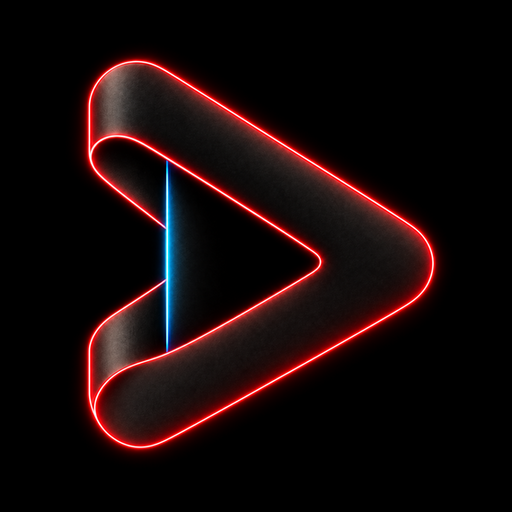
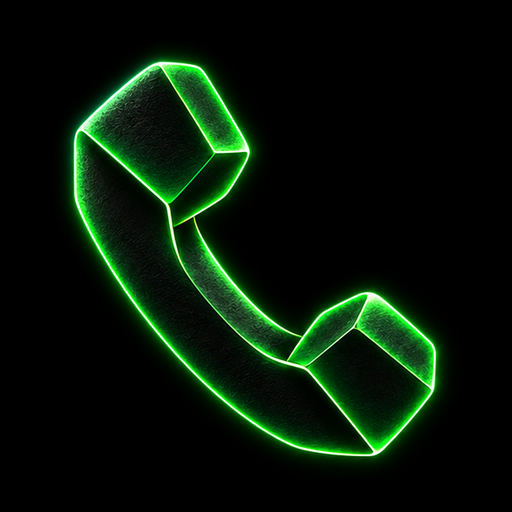
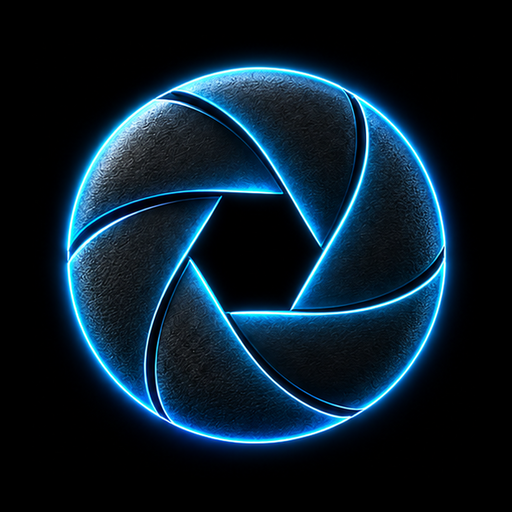
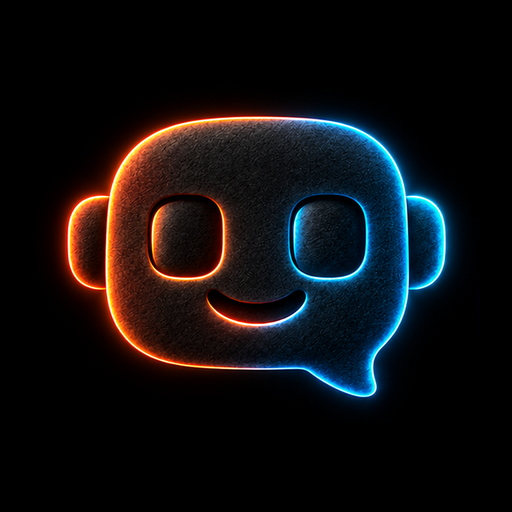
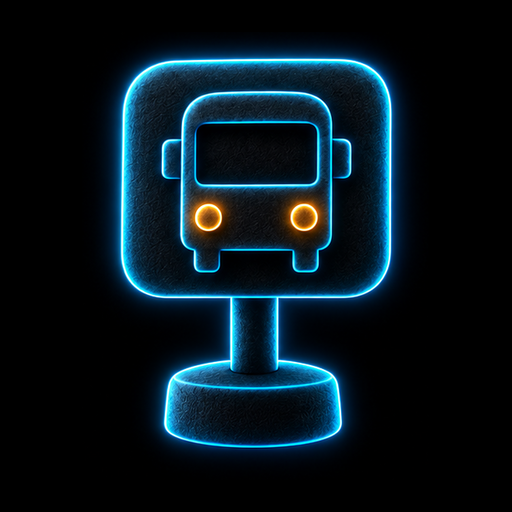
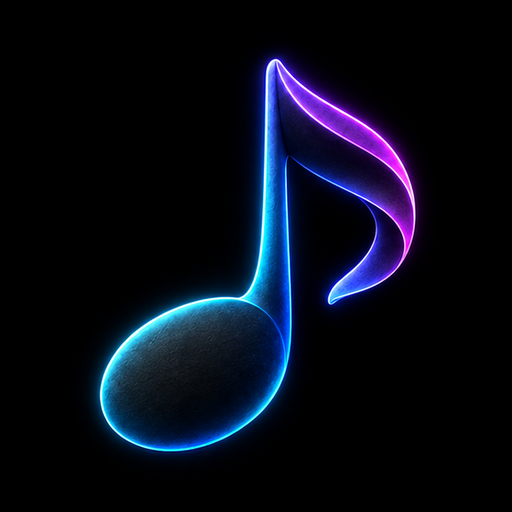
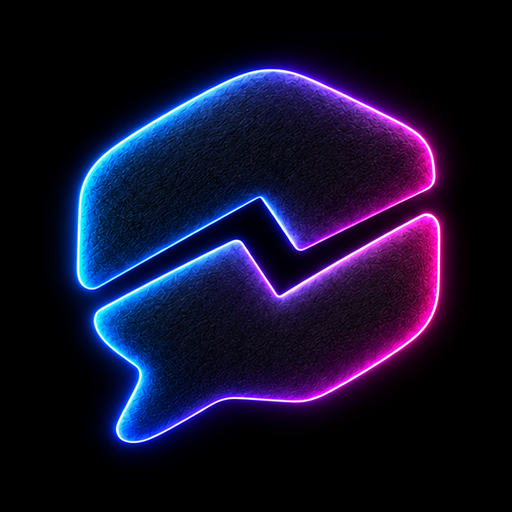
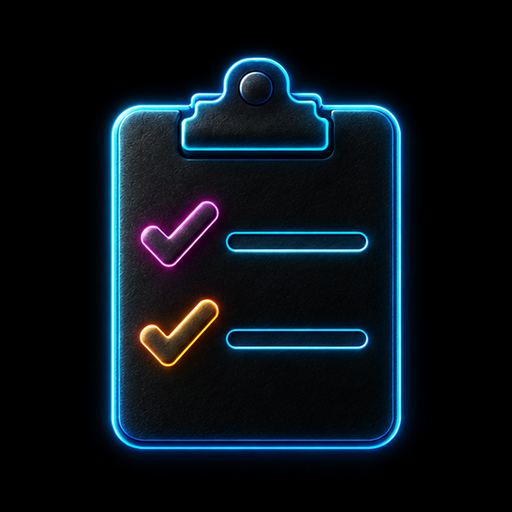
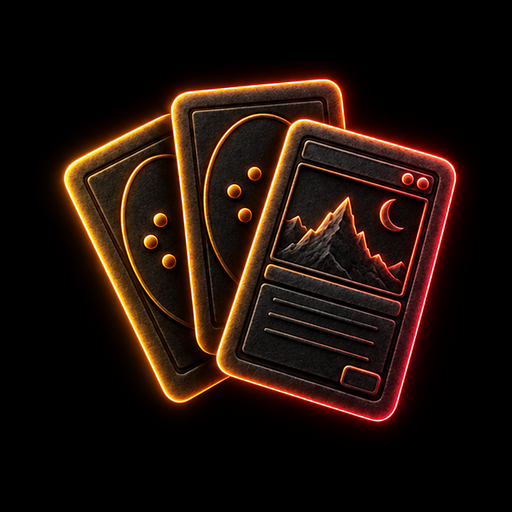
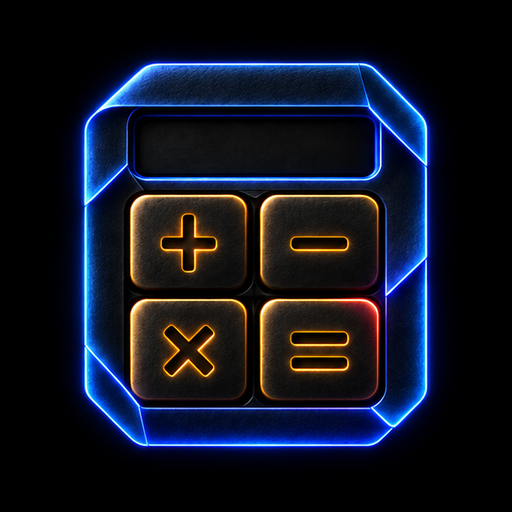
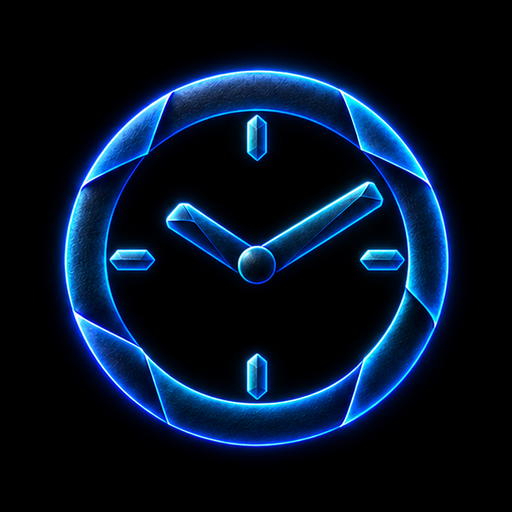
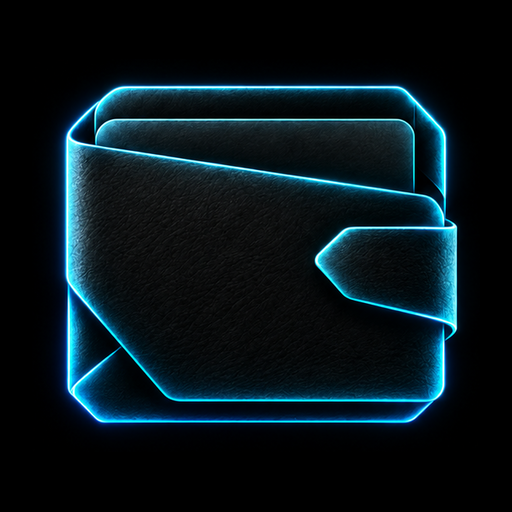
Actual included artwork. Layout preview, not a device screenshot.
Start with one icon.
You can add the rest when you like the feel.
Download and unzip
Save the ZIP to Files on your iPhone. Find it in Downloads and tap it to extract the folder. Open the icons folder.
Choose the app
Open Shortcuts, tap + and add the Open App action. Tap the App field and choose the installed app you want to launch.
Add your neon artwork
Save the shortcut, open its Details and choose Add to Home Screen. Tap the icon, choose Choose File, then select a PNG from the icons folder. Set a label and tap Add.
Give it a try
Tap your new Home Screen icon to check it opens the right app. Keep the original app installed. Repeat for your favourites. Menu wording can vary by iOS version.
These are custom Home Screen shortcuts, not replacements for native app icons. Artwork is static: no live dates, clock hands or notification badges. Setup is one icon at a time, with no bulk installer. This pack has not yet been verified on an iPhone.
General installation walkthrough
A 72-second setup guide. The walkthrough uses matte icons; the setup is the same for Neon.
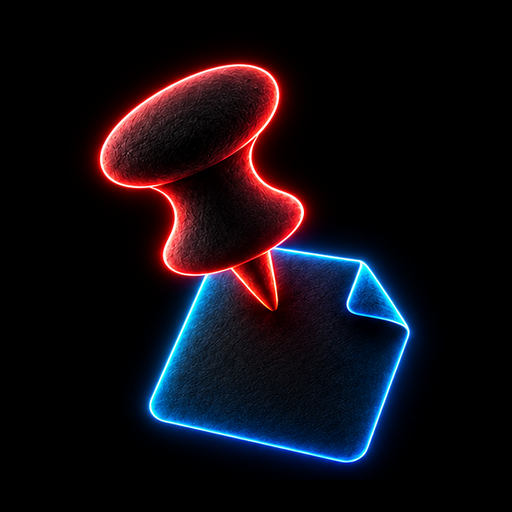
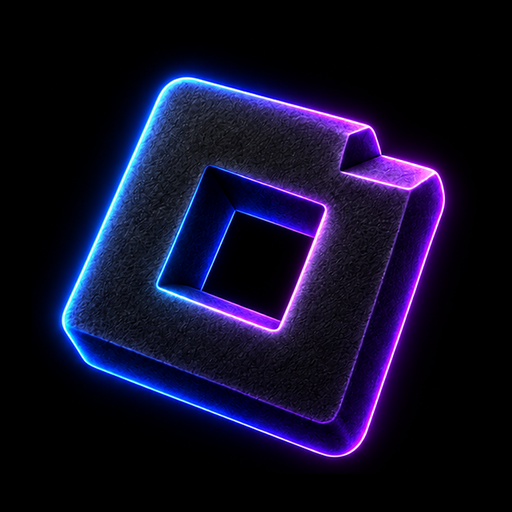
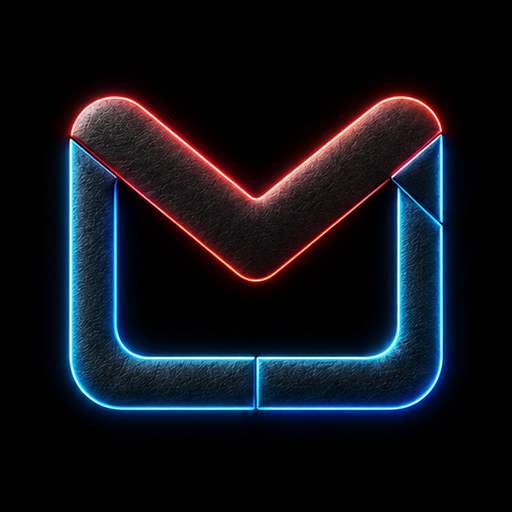
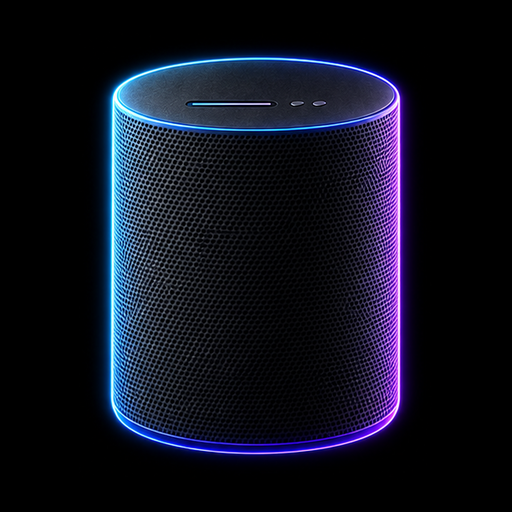
The full Neon collection.
36 original names. One glowing collection.
Tell us how it feels.
After trying a few icons, send your feedback in the conversation where you received this link.
- Was downloading and adding an icon straightforward?
- Do the icons look crisp and easy to recognise?
- Did anything feel slow, confusing or out of place?
Your iPhone model and iOS version help explain any installation trouble.